Your First Connection
Make Your First VPN Connection
One tap is all it takes. Connect to OrbVPN's global server network and instantly encrypt your internet traffic, hide your IP address, and unlock unrestricted access.
How to Connect
Follow these steps to establish your first secure VPN connection. The entire process takes about five seconds from opening the app to full protection.
Open OrbVPN
Launch the OrbVPN app on your device. After signing in, you will land on the Home tab, which is the main VPN control screen.
Select a Server Location (Optional)
By default, OrbVPN connects to the fastest available server. To choose a specific location, tap the location selector below the connect button and browse the server list.
Tap the Connect Button
Tap the large circular power button in the center of the screen. The button will animate as the connection is established. This typically takes one to two seconds.
Verify Your Connection
Once connected, the interface changes to show your new IP address, connection duration, and real-time upload and download speeds. The status bar will also show a VPN icon.
You Are Now Protected
Once the connection is established, all your internet traffic is encrypted and routed through OrbVPN's secure servers. Your real IP address is hidden from websites, apps, and your ISP.
Understanding Connection States
OrbVPN displays different visual states so you always know your protection status at a glance.
Idle State
The default state when no VPN connection is active. The connect button is ready and waiting for your tap.
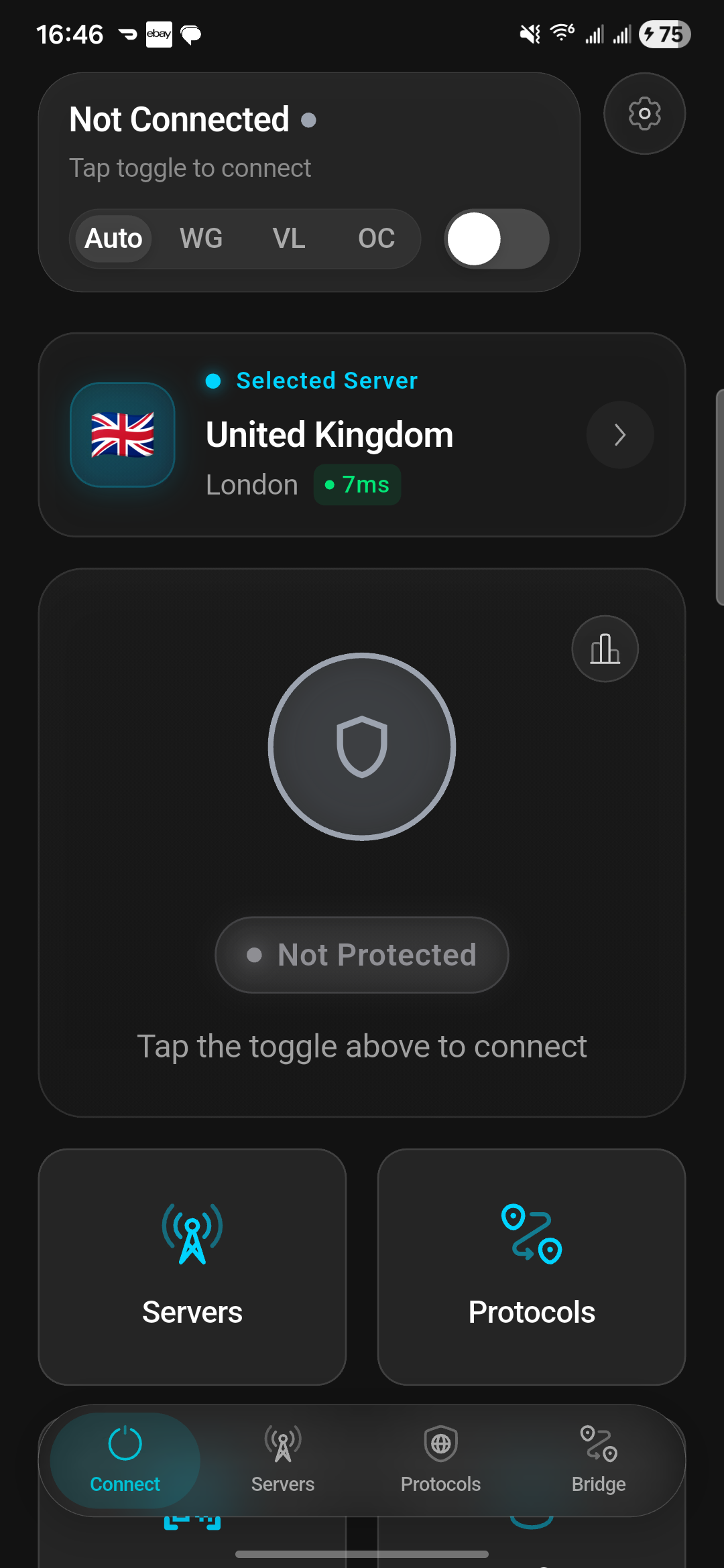
Server Location
Displays the currently selected server location. Tap to change it before connecting. The app shows the country flag and city name.
Protocol Indicator
Shows which VPN protocol is active: WireGuard, VLESS, or OrbConnect. You can change this in Settings before connecting.
Connecting State
This transitional state appears while OrbVPN establishes the secure tunnel to your selected server.
Animated Indicator
The connect button animates with a pulsing effect while the tunnel is being established. This typically takes one to two seconds.
Cancel Option
If you need to cancel, tap the connect button again during the connecting phase. The attempt will be aborted and you return to the idle state.
Connection Speed
WireGuard connections typically establish in under one second. VLESS and OrbConnect may take slightly longer, especially on first connection or when connecting to distant servers.
Connected State
The protected state. Your internet traffic is now encrypted and your real IP address is hidden.
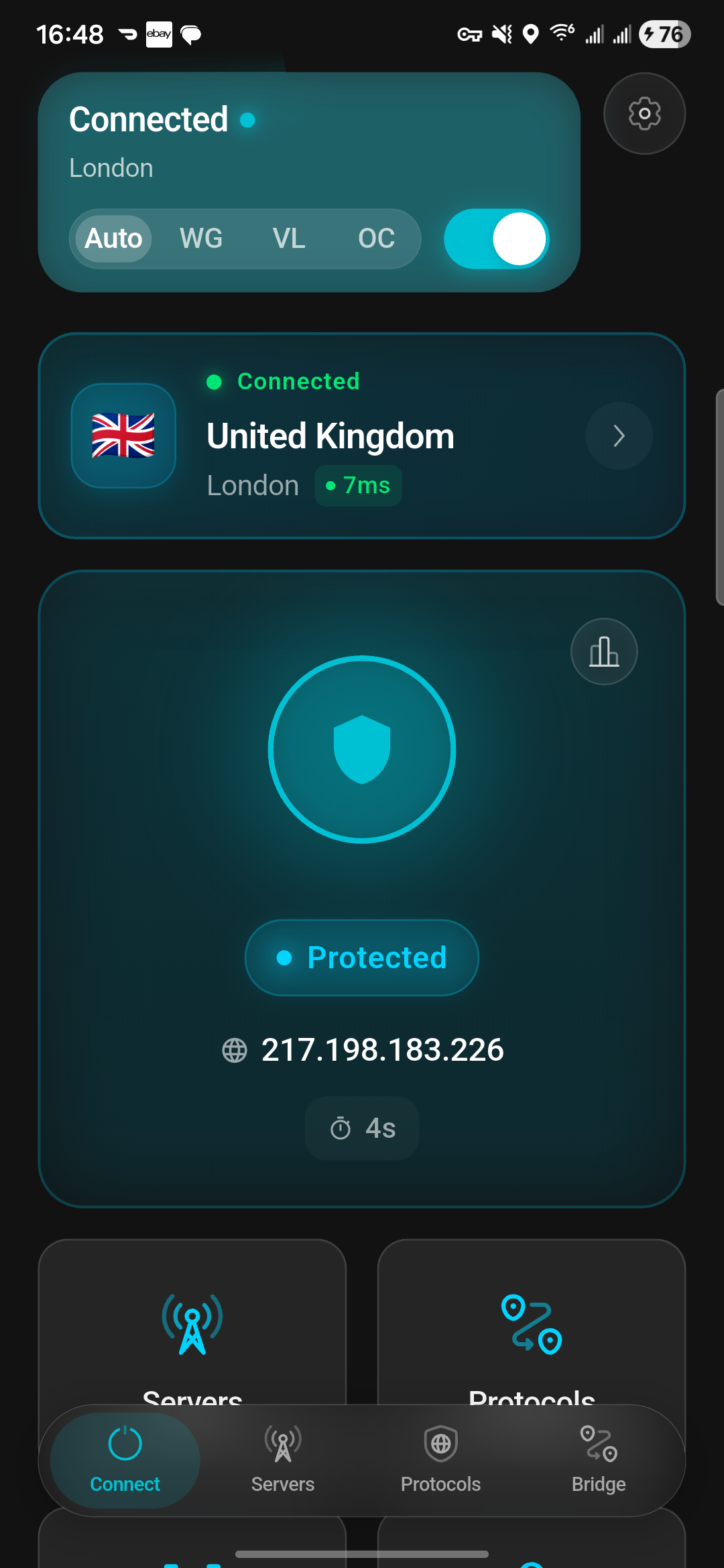
New IP Address
Your assigned server IP is displayed on screen. This is what websites and services see instead of your real IP address.
Live Speed Monitor
Real-time upload and download speed indicators show your current throughput. Useful for verifying performance during streaming or downloads.
Connection Timer
A running timer shows how long you have been connected. This helps you track your usage and session duration.
Stay Connected
For maximum privacy, keep OrbVPN connected at all times, especially when using public Wi-Fi at cafes, airports, hotels, or co-working spaces. The app is designed for always-on use with minimal battery impact.
Error State
If the connection attempt fails, OrbVPN shows an error state with actionable guidance to resolve the issue.
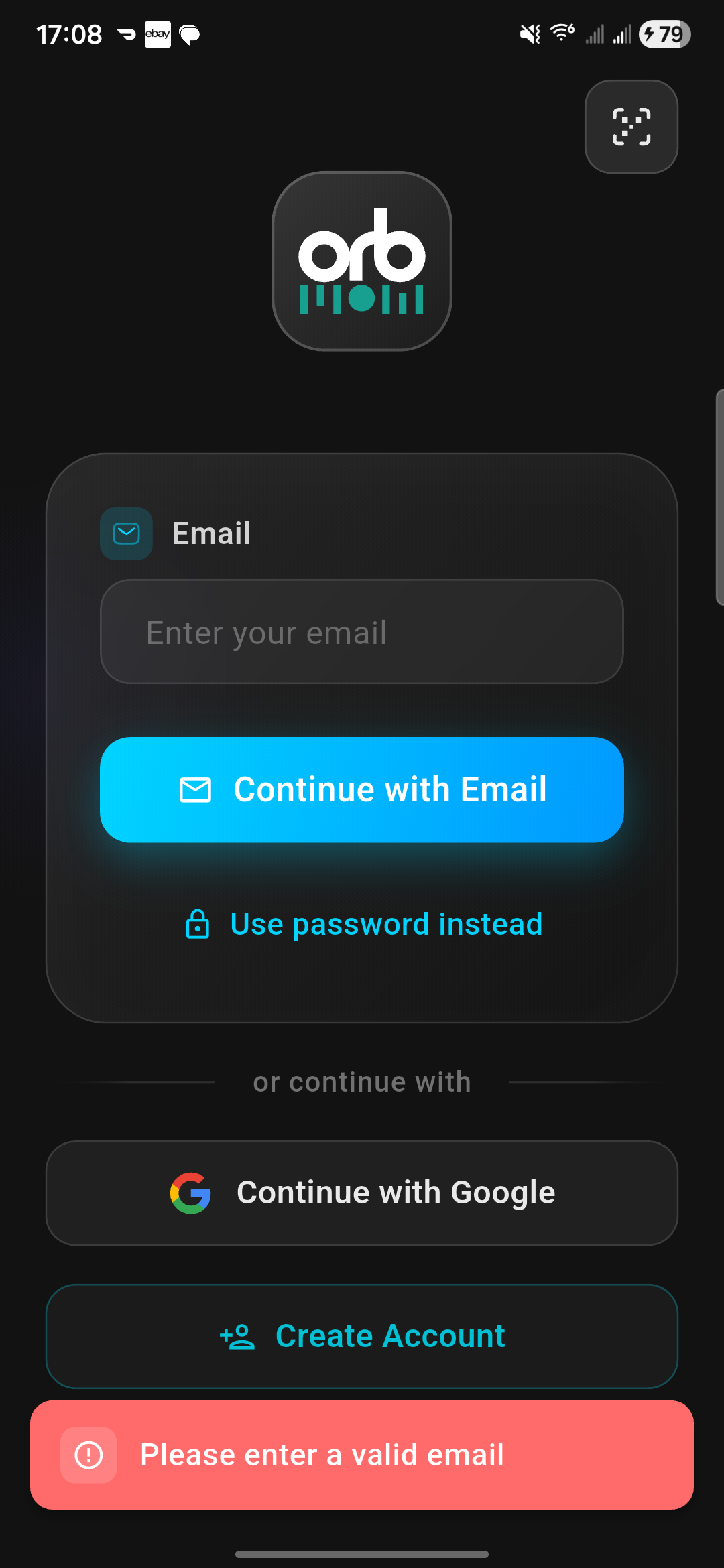
Review the Error Message
Read the status message displayed on screen. Common causes include no internet connectivity, server maintenance, or network restrictions blocking VPN traffic.
Try a Different Server
Tap the location selector and choose a different server. Some servers may be temporarily at capacity or closer servers may offer better reliability.
Switch Protocols
Navigate to Settings and change the VPN protocol. If WireGuard fails, try VLESS. If both fail, try OrbConnect, which is designed to work on restrictive networks.
Retry the Connection
Tap the connect button again. Many connection errors are transient and resolve on the second attempt.
Persistent Errors
If you cannot connect after trying different servers and protocols, check that your internet connection is working without VPN first. Restart the app or your device if needed. Contact our support team if the issue persists.
Choosing a Server Location
OrbVPN offers servers in 100+ locations worldwide. Choosing the right server affects your speed, latency, and which regional content you can access.
Fastest Server
Let OrbVPN automatically select the fastest available server based on your current location and network conditions. This is the default and recommended option.
Specific Country
Choose a server in a specific country to access region-locked content or to appear as if you are browsing from that location.
Specific City
Some countries offer multiple city options. Select a specific city for the lowest latency or to access city-specific content and services.
Server Selection Tips
For everyday browsing, use the closest server for the best speed. For streaming, select a server in the country where the content is available. For gaming, choose the server closest to the game's regional servers.
Understanding VPN Protocols
OrbVPN supports three VPN protocols. Each is optimized for different use cases.
WireGuard
The default protocol. Delivers the best combination of speed and security with modern cryptography. Ideal for everyday use, streaming, and downloads.
VLESS
A lightweight protocol optimized for restrictive networks. Excellent at bypassing deep packet inspection and network-level VPN blocks.
OrbConnect
OrbVPN's proprietary protocol combining advanced obfuscation with high performance. The most resilient option for highly restricted environments.
Verify Your Connection
After connecting, it is a good practice to verify that everything is working correctly.
Check Your IP Address
The Home screen displays your new IP address after connecting. You can also visit a site like whatismyipaddress.com in your browser to confirm your IP has changed.
Check for DNS Leaks
Visit dnsleaktest.com and run an extended test. All DNS queries should resolve through OrbVPN's servers, not your ISP's DNS.
Test Your Speed
Run a speed test to ensure your connection is performing well. Some speed reduction is normal with any VPN, but OrbVPN with WireGuard keeps overhead minimal.
Confirm Status Bar Icon
On mobile devices, check for the VPN icon in your status bar. On desktop, check the system tray icon. These indicators confirm the tunnel is active at the OS level.
Disconnecting
When you are done and want to disconnect from the VPN, simply tap the connect button again. The connection will terminate immediately and your traffic will resume flowing through your regular internet connection.
Clean Disconnect
OrbVPN ensures a clean session termination. No traffic leaks during the disconnect process. Your real IP is restored only after the tunnel is fully closed.
Kill Switch Protection
If the VPN drops unexpectedly, the kill switch blocks all internet traffic until the connection is restored, preventing any data from leaking outside the tunnel.
Troubleshooting Your First Connection
Cannot Connect to Any Server
Verify your internet is working without VPN. Restart the app. Try switching between Wi-Fi and mobile data. Check that your subscription is active.
Slow Connection Speed
Try a server closer to your physical location. Switch to WireGuard protocol for the best performance. Close bandwidth-heavy background apps.
VPN Blocked on Network
Some networks block standard VPN protocols. Switch to VLESS or OrbConnect, which use obfuscation to bypass VPN detection.
Connection Drops Frequently
Enable the kill switch in Settings. Switch to a closer server. If on mobile, ensure OrbVPN is excluded from battery optimization to prevent the OS from killing it.
Successfully Connected?
You are now protected. Next, take a tour of the OrbVPN interface to discover all five main modules and the powerful features available across the app.