Interface Overview
Explore the OrbVPN Interface
OrbVPN is organized into five main tabs, each providing access to a core module of the platform. Learn what each tab does and how to navigate the app efficiently.
App Navigation
OrbVPN uses a bottom tab bar for primary navigation. Five tabs give you instant access to every major feature of the platform. Here is what each tab contains and when you will use it.
Home
VPN controls
OrbMesh
Mesh networking
Hylon
AI assistant
Wallet
Blockchain wallet
Settings
Configuration
Tab 1: Home (VPN)
The Home tab is your primary VPN control center. This is the first screen you see after signing in and the tab you will use most frequently.
What You Will Find Here
Connect Button
The large circular power button in the center of the screen. One tap to connect, one tap to disconnect. The button animates during connection and glows when active.
Server Location Selector
Displays your currently selected server location with country flag and city name. Tap to browse the full server list and switch locations.
Connection Status
Shows your current state: idle, connecting, connected, or error. When connected, displays your assigned IP address and connection duration timer.
Speed Monitor
Real-time upload and download speed indicators visible when connected. Useful for monitoring throughput during streaming, gaming, or large downloads.
Key Actions on the Home Tab
Connect to VPN
Tap the power button to establish a secure VPN connection using your selected server and protocol.
Change Server Location
Tap the location display to open the server browser. Filter by country, city, or latency. Favorite servers for quick access.
Monitor Connection
While connected, observe your new IP address, session duration, and real-time speeds directly on the Home screen.
Disconnect
Tap the power button again to disconnect. The kill switch protects you during the transition back to your regular connection.
Quick Connect
The Home tab is designed for speed. You can go from opening the app to a fully encrypted connection in under two seconds. The last-used server is pre-selected for instant reconnection.
Tab 2: OrbMesh
The OrbMesh tab provides access to OrbVPN's peer-to-peer mesh networking system. This feature lets you create private networks between your own devices or with trusted peers. The OrbMesh tab is organized into 4 sub-tabs.
OrbMesh Sub-Tabs
Servers
Browse and connect to OrbMesh servers categorized by type: ORB DC (OrbVPN data centers), Partner DC (partner data centers), and Community DC (community-contributed nodes).
Overview
A dashboard displaying your OrbMesh statistics including mesh earnings, contribution metrics, active connections, and overall network health at a glance.
My Mesh
Manage your contributed nodes, view individual node health, monitor uptime and performance metrics, and configure node settings for each device you contribute.
Networks
Create, join, and manage mesh networks. Choose from Private (personal devices), Team (shared with colleagues), or Public (open to the community) network types.
What You Will Also Find Here
Peer Invitations
Invite trusted contacts to join your mesh network using secure invitation links. You control who has access at all times.
Traffic Routing
Configure how traffic flows through your mesh. Route through specific nodes, set up exit nodes, or create private tunnels between devices.
When to Use OrbMesh
Remote Access
Access your home computer or NAS from anywhere through the mesh, without exposing ports to the internet.
Team Collaboration
Create a private network for your team to share resources securely without relying on a centralized VPN server.
IoT Networks
Connect and manage IoT devices through a private mesh, keeping them isolated from the public internet.
Tab 3: Hylon (AI Assistant)
The Hylon tab is your intelligent security and networking assistant powered by artificial intelligence. It provides insights, recommendations, and answers to your questions about privacy and security.
What You Will Find Here
Chat Interface
A conversational AI assistant you can ask questions about security, privacy, VPN configuration, troubleshooting, and networking best practices.
Security Insights
Proactive alerts and recommendations about your security posture, potential vulnerabilities, and suggested actions to improve your protection.
Network Analysis
AI-powered analysis of your current network environment including Wi-Fi security assessment, DNS configuration review, and connection optimization tips.
Smart Recommendations
Personalized suggestions for server selection, protocol choice, and security settings based on your usage patterns and current network conditions.
Example Questions for Hylon
Security Questions
'Is my current Wi-Fi network secure?' or 'What protocol should I use on this network?' Hylon analyzes your environment and gives specific advice.
Troubleshooting Help
'Why is my VPN connection slow?' or 'I cannot connect to servers in Europe.' Hylon diagnoses issues and suggests solutions step by step.
Feature Guidance
'How do I set up OrbMesh?' or 'What is split tunneling?' Hylon explains features and walks you through configuration.
Tab 4: Wallet
The Wallet tab manages your blockchain wallet and ORB token interactions within the OrbVPN ecosystem. The Wallet tab is organized into 6 sub-tabs.
Wallet Sub-Tabs
Wallet
View your current ORB token balance, equivalent fiat value, and complete transaction history. Send and receive tokens with QR codes.
Stake
Manage your ORB token staking. View active stakes, staking rewards, lock periods, and available staking pools. Stake tokens to earn passive income.
Invite
Generate and share referral links to invite new users. Track how many people signed up through your links and view pending referral rewards.
Network
View your affiliate tree showing the network of users you have referred and their referrals. Visualize your network growth and earning potential.
Leaders
Leaderboard showing top contributors, earners, and referrers in the OrbVPN ecosystem. See where you rank among the community.
Rewards
Claim accumulated rewards from referrals, staking, mesh contributions, and promotional events. View reward history and pending payouts.
Wallet Security
Your wallet private keys are stored locally on your device and encrypted with your biometric or device PIN. OrbVPN never has access to your private keys. Always back up your recovery phrase when prompted.
Tab 5: Settings
The Settings tab is your control center for configuring every aspect of OrbVPN. From profile management to advanced protocol settings, everything is accessible here.
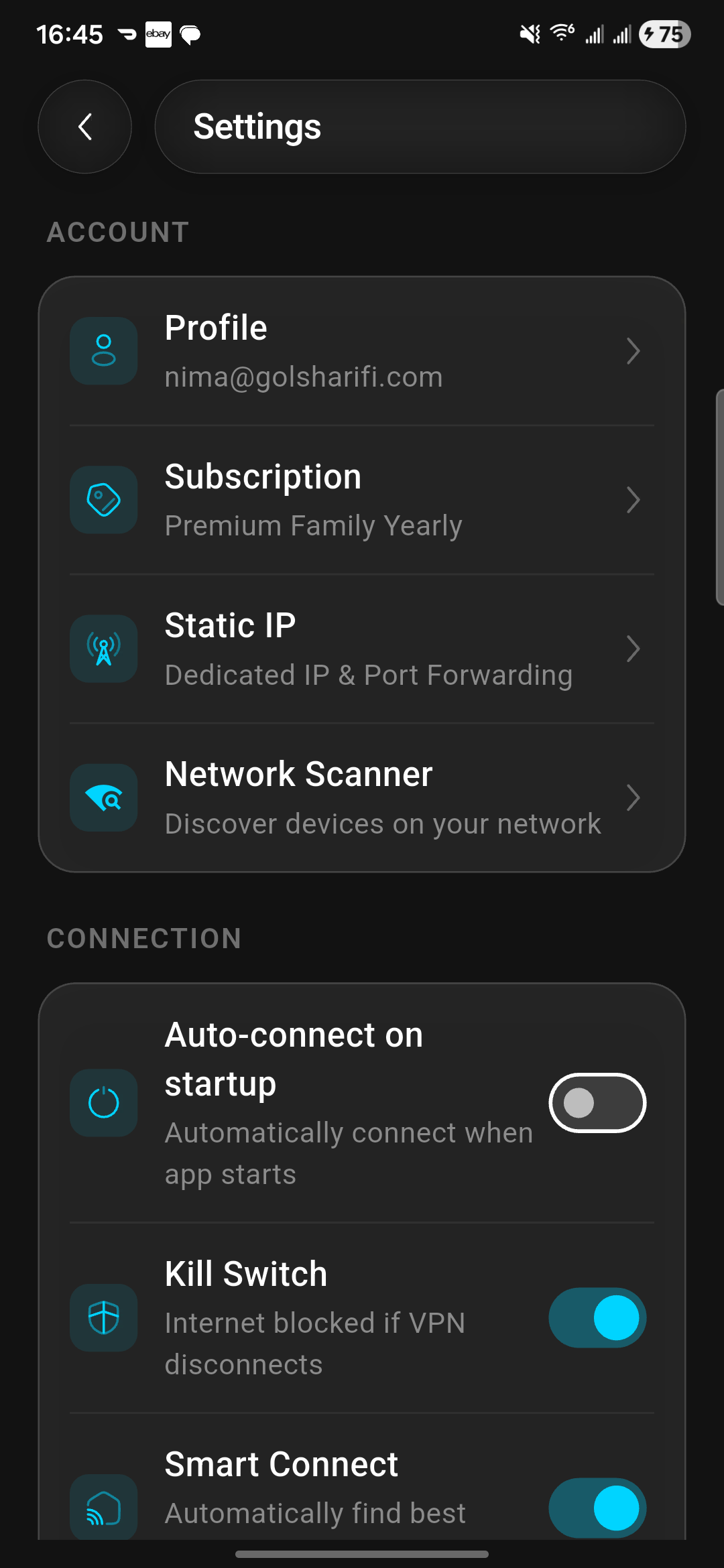
Settings Categories
Profile
View and edit your account information: name, email, phone number, and address. Check your loyalty status and unique User ID.
Security
Change password, enable biometric authentication (Face ID or fingerprint), and manage two-factor authentication settings.
VPN Protocol
Switch between WireGuard, VLESS, and OrbConnect protocols. Each protocol has its own configuration options for advanced users.
Billing
View your current subscription plan, expiration date, active device count, and payment history. Renew or upgrade your plan.
App Control
Configure split tunneling: exclude specific apps from VPN or set apps to automatically trigger VPN connection when launched.
Support
Access concierge support via WhatsApp or Telegram, browse FAQs, report bugs, and view legal documents including terms and privacy policy.
About Screen
The About section in Settings displays essential app and account information.
App Version
View the current OrbVPN app version and build number. Useful when reporting issues to support or checking if you are running the latest release.
Legal Information
Access the Terms of Service, Privacy Policy, and open-source licenses used in the app. Required reading for enterprise deployments.
Check for Updates
Tap to check whether a newer version of OrbVPN is available. If an update is found, you are directed to the appropriate app store or download page.
Finding Your App Version
Navigate to Settings then scroll to the About section at the bottom. The version number is displayed as a label (for example, v2.5.1 build 142). Always include this when creating support tickets or reporting bugs.
Quick Settings Access
Profile Management
Tap your profile section at the top of Settings to edit personal information, view your User ID, and check your loyalty tier.
Protocol Switching
Tap the Protocol option to change your VPN protocol. The change takes effect on your next connection. No need to disconnect first.
Split Tunneling
Tap Excluded Apps to add apps that should bypass the VPN. Tap On Demand Apps to set apps that automatically trigger VPN when opened.
Get Help
Scroll to the Concierge section to reach live support. WhatsApp and Telegram provide the fastest response times, typically under five minutes.
Home Screen Quick Action Tiles
Below the main connect button on the Home tab, OrbVPN displays a grid of quick action tiles that provide one-tap access to frequently used features.
Protocols
Switch between WireGuard, VLESS, and OrbConnect directly from the Home screen without navigating to Settings.
Bridge Mode
Enable or disable bridge mode for censorship circumvention. Tap to toggle when connecting through restricted networks.
Network Scanner
Launch the network scanner to analyze your current Wi-Fi network, detect connected devices, and assess network security.
Smart DNS
Toggle Smart DNS mode for streaming optimization. Routes only DNS queries through OrbVPN while other traffic uses your regular connection.
Static IP
Enable your dedicated static IP address for services that require a consistent IP, such as remote access or whitelisted connections.
Rewards
Quick access to your rewards dashboard showing pending ORB token earnings, daily streaks, and claimable bonuses.
Customizable Tiles
The quick action tiles on the Home screen adapt based on your subscription tier and usage patterns. Premium users see additional tiles for advanced features like Mimicry and Static IP.
Navigation Tips
Swipe Between Tabs
On mobile, you can swipe left or right to move between adjacent tabs. This provides a fluid navigation experience without reaching for the tab bar.
Tab Badge Indicators
Notification badges appear on tab icons when there is something that needs your attention, such as a security alert on Hylon or a new transaction in Wallet.
Quick Actions
Long-press the OrbVPN icon on your home screen (iOS and Android) to access quick actions: Connect VPN, Change Server, and Open Settings.
Persistent Connection
The VPN connection remains active regardless of which tab you are viewing. You can browse OrbMesh, chat with Hylon, or check your Wallet without interrupting protection.
Desktop Navigation
On macOS and Windows, OrbVPN uses a sidebar navigation instead of a bottom tab bar. The same five sections are available as sidebar items. The app also sits in your system tray for quick connect and disconnect without opening the full window.
Theme and Language
OrbVPN supports customizable appearance and a wide range of languages to suit your preferences.
Light and Dark Mode
Toggle between Light mode and Dark mode in Settings. Dark mode reduces eye strain in low-light environments and saves battery on OLED screens.
15+ Languages
OrbVPN is available in English, Persian, Arabic, French, Spanish, German, Italian, Portuguese, Russian, Polish, Japanese, Korean, Dutch, Turkish, and Chinese.
RTL Language Support
OrbVPN fully supports right-to-left (RTL) layouts for Persian and Arabic. When you select one of these languages, the entire interface mirrors to provide a native RTL reading experience including navigation, text alignment, and icon placement.
What to Explore Next
Now that you know your way around OrbVPN, dive deeper into the features that interest you most.
VPN Tutorials
Master server selection, protocol configuration, kill switch, and split tunneling for the ultimate VPN experience.
OrbMesh Guides
Set up your first mesh network, invite peers, and configure routing for private communication between devices.
Security Suite
Explore OrbGuard features including malware scanning, breach monitoring, and network security tools.
You Know the Basics
You have completed the Getting Started guide. You now know how to download, install, create an account, connect, and navigate OrbVPN. Explore the deeper tutorials to unlock the full power of the platform.